
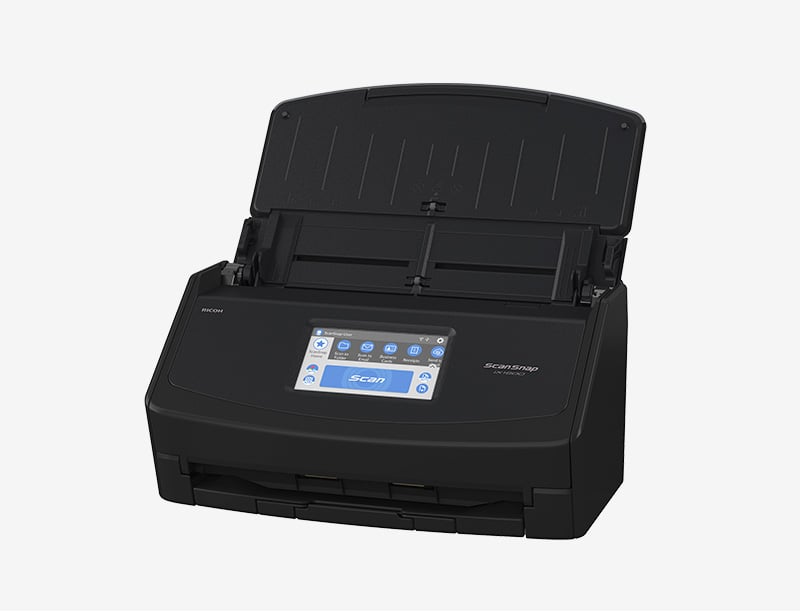
For many teams and individuals, a reliable scanner is a cornerstone of digital workflow. The scansnap ix1600 delivers an efficient blend of speed, accuracy, and ease of use that fits busy offices. With a compact footprint and software designed for everyday tasks, it helps you move from paper chaos to searchable PDFs, organized folders, and quick approvals—without a steep learning curve.
In this guide, we’ll explore how the device’s hardware and software work together, what types of documents it handles best, and how to optimize your setup for consistent results. Whether you’re digitizing receipts, contracts, or long-form documents, the ix1600 is built to support your workflow while staying affordable for solo practitioners and small teams.
Key features that boost productivity
At a glance, the scansnap ix1600 combines reliability with sensible design. The 50-page Automatic Document Feeder (ADF) handles duplex scanning, so two-sided pages are captured in a single pass. The machine’s color depth supports vibrant receipts and color documents, while efficient paper feeding minimizes jams during bulk scans. USB-C connectivity makes it easy to pair with modern laptops and desktop computers, and the ScanSnap Home software guides you through scanning, naming, and exporting files in common formats such as PDF, searchable PDF, JPEG, and TIFF.
Software reliability matters as much as hardware. ScanSnap Home provides OCR that converts scanned pages into searchable text, streamlining editing and indexing. For those who need cloud access, scanned files can be sent directly to popular services like cloud drives or collaboration tools, helping teams stay synchronized even when members work remotely. In many setups, this combination reduces the time spent on manual data entry and file organization by a noticeable margin.
Practical use cases for home offices and small teams
Receipts, invoices, and expense reports are a common bottleneck in many home offices. With fast batch scanning, you can digitize a month’s worth of receipts in just a few minutes, then categorize them by project or client for straightforward reimbursement. Contracts, NDAs, and customer communications become archival-ready once indexed with text search, making it simple to locate specific clauses or terms years later. For contact data, the device can be used in tandem with card scanning software to populate CRM fields with minimal typing, saving time on onboarding and follow-ups.
- Receipts and invoices: scan in bulk for expense tracking, tax prep, and audit readiness.
- Contracts and agreements: create a searchable repository that speeds up negotiations.
- Color documents and photographs: preserve details while shrinking physical storage needs.
- Business cards: extract contact data and push it into your CRM or address book.
How to optimize scanning quality and workflow
To get the best results, keep the scanner clean, use the adjustable paper guides, and set the resolution to a balance between file size and clarity. Regular firmware and software updates from the manufacturer can improve reliability and add new export options. Define a straightforward naming convention and folder structure, and consider setting up a dedicated scan-to-cloud workflow to minimize manual steps. If your documents include small print or fine detail, run a test batch to determine the minimum legible resolution before committing to large archives.
Security and privacy matter too. Ensure that sensitive documents are stored securely with appropriate encryption or access controls in your cloud or local drives. When collaborating in teams, use cloud destinations with proper permissions to prevent inadvertent data leakage. For a broader look at scanning gear and related tips, visit the ReadsNow homepage.
On initial setup, plan a short test batch and save a standard naming template, then propagate it across future scans for consistency.
For more reviews and buying guides, visit the ReadsNow homepage.
 Admin
Admin